Phone Won't Turn On? A Technician's Step-by-Step Checklist
A black screen doesn't always mean a dead phone. These are the steps we follow on the bench, in the same order, to find out what's really wrong.

Quick answer
First, charge it for at least 30 minutes with a cable and charger you know work, then force restart it. On an iPhone 8 or later: press and quickly release volume up, then volume down, then hold the side button until the Apple logo appears. If the phone vibrates, rings or shows up on a computer but the screen stays black, the display is the likely problem. With no sign of life at all, it may be the battery, the charging port or the board. Diagnostics at Hotspot Mobile Repairs are free.
- Charge for 30 minutes or more with a known-good cable and charger before anything else.
- Force restart: iPhone 8 and later, volume up, volume down, then hold the side button.
- Signs of life (vibration, sounds, a computer detecting it) point to the screen.
- No signs of life: battery, charging port or board. A free diagnostic finds out.
When a phone won't turn on, people often assume the worst. On our bench, a lot of "dead" phones turn out to have a flat battery, a lint-packed port or a broken screen on a phone that's actually running fine. Follow these steps in order before you assume it's gone.
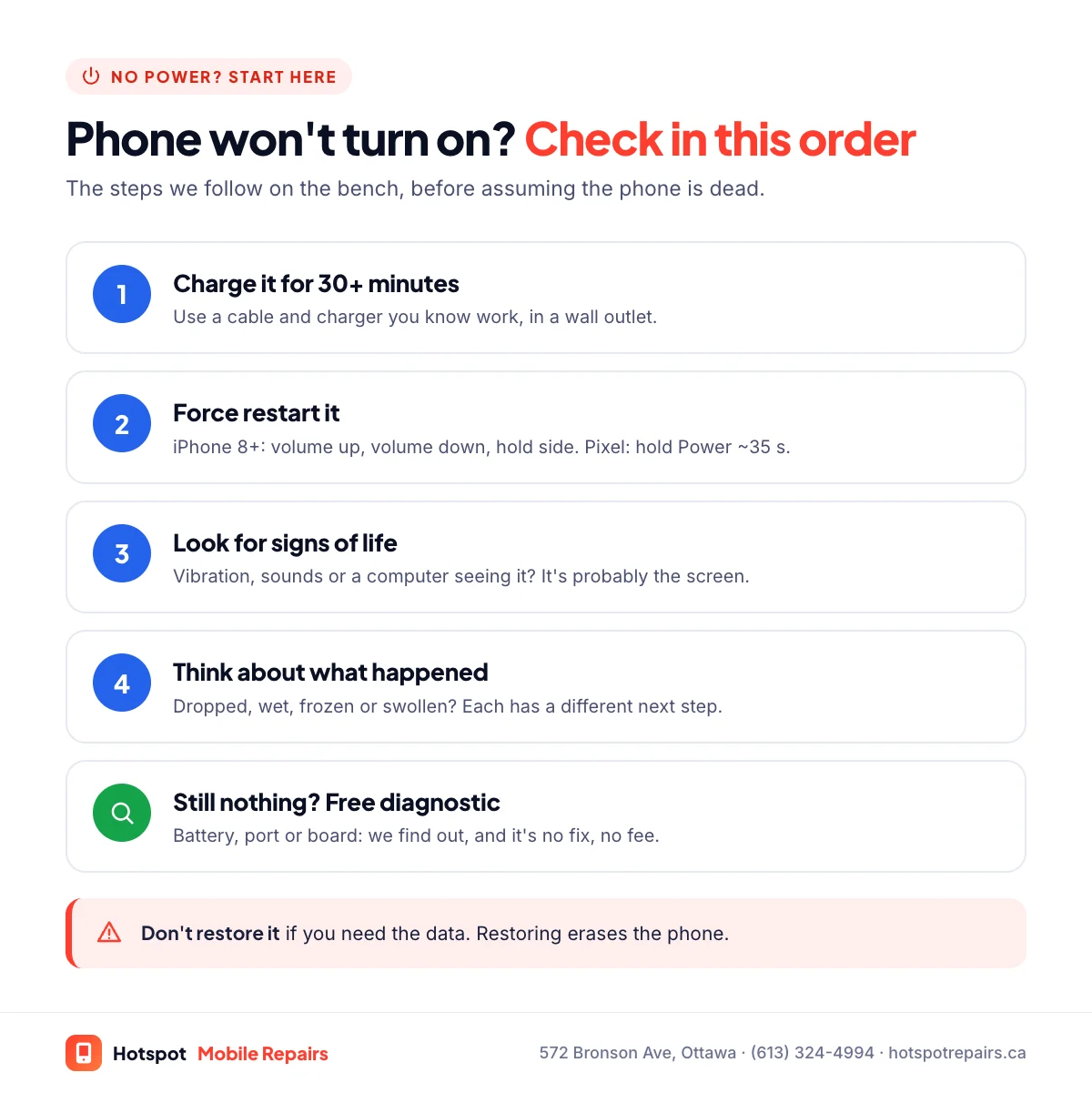
Step 1: Charge it properly
A completely drained battery can take a while to show anything. Plug the phone into a cable and charger you know work, in a wall outlet rather than a computer, and leave it for at least 30 minutes. Apple suggests charging for an hour and trying again if an iPhone still won't turn on. If a charging icon appears, you're done: it was just flat.
Not charging at all? The port may be full of lint. Our guide to phones that won't charge covers that.
Step 2: Force restart it
- iPhone 8 and later (including the iPhone SE 2nd generation and later): press and quickly release volume up, press and quickly release volume down, then press and hold the side button until the Apple logo appears. Apple's instructions note it can take longer than 10 seconds.
- Google Pixel: Google says to press and hold the Power button for about 35 seconds to reboot (Google's guide).
- Samsung Galaxy: on most recent models, press and hold the Side key and Volume down together for about seven seconds.
Step 3: Look for signs of life
Even with a black screen, the phone may be running. Check for:
- A vibration when you plug it in or flip the silent switch.
- Notification sounds, or ringing when you call it from another phone.
- The computer recognising it when you plug it in: Finder on a Mac, or the Apple Devices app or iTunes on Windows.
Any sign of life usually means the screen is the problem, not the phone. That's good news: a screen replacement doesn't touch your data. See our iPhone and Samsung screen guides.
Step 4: Think about what happened
- Dropped it? The screen or its connector may be damaged, or occasionally the board.
- Got wet? Don't charge it; follow our water damage steps right away.
- Been out in the cold? Let it warm up to room temperature before charging. Apple says very cold devices can turn off and may not charge. See our cold-weather guide.
- Screen lifting? That's a swollen battery. Stop charging and read our swollen battery guide.
Step 5: Stuck on the Apple logo? Be careful with restores
If an iPhone keeps restarting or sticks on the Apple logo, Apple's guide on updating or restoring an iPhone uses recovery mode. Choose Update, which tries to reinstall iOS without erasing your data. Restore erases the phone, so only do that if you have a backup. If your photos matter and there's no backup, stop here and bring it in.
What it usually turns out to be
| What you notice | Likely cause | Typical fix |
|---|---|---|
| Charging icon after 30 minutes | Flat battery | None needed, or a new battery if it keeps happening |
| Vibrates or rings, black screen | Display | Screen replacement |
| Won't charge on any cable | Charging port or battery | Port cleaning or repair, battery |
| Died after getting wet | Liquid damage | Board cleaning and repair |
| No sign of life at all | Battery, power chip or board | Diagnosis, then repair |
Need what's on it?
If the phone can't be saved cheaply but the photos can't be lost, data recovery is often possible by repairing the phone just enough to get it running. Either way, diagnostics at our shop at 572 Bronson Avenue are free, and phones that won't turn on are no fix, no fee.
Frequently asked questions
How do I force restart an iPhone?
On iPhone 8 and later, including the iPhone SE (2nd generation and later): press and quickly release the volume up button, press and quickly release the volume down button, then press and hold the side button until the Apple logo appears. Apple notes it can take longer than 10 seconds.
How do I restart a Pixel or Samsung phone that won't respond?
On a Pixel, Google says to press and hold the Power button for about 35 seconds to reboot. On most recent Galaxy phones, press and hold the Side key and the Volume down key together for about seven seconds.
My phone vibrates but the screen stays black. What's wrong?
The phone is running, so the display or its connection is the likely problem, often after a drop. A screen replacement usually fixes it, and your data is safe.
Will I lose my data if my phone won't turn on?
Not necessarily. Most causes, like a dead battery, a bad screen or a charging port, can be repaired without touching your data. Avoid restoring or erasing the phone until you know what's wrong.
How much does it cost to diagnose a phone that won't turn on?
Nothing at Hotspot Mobile Repairs. Diagnostics are free, and you only pay if we fix it.
Sources & further reading
- Restart an unresponsive iPhone — Apple Support (Canada)
- Fix a Pixel phone that won't charge or turn on — Google Pixel Help
- If you can't update or restore your iPhone — Apple Support (Canada)
- If your iPhone or iPad gets too hot or too cold — Apple Support (Canada)
Prices and details were checked on September 27, 2026. They can change; call us for today's price.